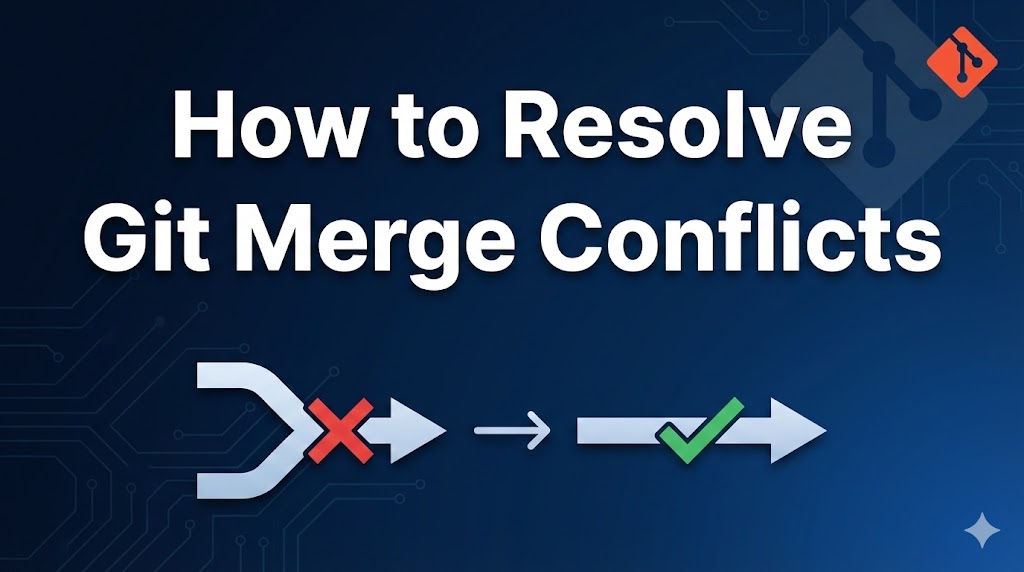
You tried to merge branches in Git and now you’re seeing a message about “merge conflicts.” Your files have weird symbols like <<<<<<< all over them. Take a breath — this is completely normal and it happens to every developer.
A merge conflict happens when two people (or two branches) changed the same part of the same file, and Git doesn’t know which version to keep. It’s asking you to decide.
This guide will show you exactly how to resolve merge conflicts, even if you’ve never done it before.
目次
What Causes a Git Merge Conflict
- Two branches edited the same line — You changed line 10 in your branch, and someone else also changed line 10 in theirs.
- One branch deleted a file the other edited — Git can’t merge a file that exists in one branch but was removed in another.
- Both branches added content in the same spot — For example, both branches added a new function at the end of the same file.
Fix 1: Resolve Conflicts Manually (Most Common)
When a merge conflict happens, Git marks the conflicting sections in your files. You need to edit the files and choose which changes to keep.
Step 1: See which files have conflicts.
# Shows the status of your merge — conflicted files will be listed as "both modified"
git status
Step 2: Open the conflicted file. You’ll see sections that look like this:
<<<<<<< HEAD
This is the change from your current branch.
=======
This is the change from the branch you're merging in.
>>>>>>> feature-branch
Here’s what these markers mean:
<<<<<<< HEAD— The start of your current branch’s version.=======— The divider between the two versions.>>>>>>> feature-branch— The end of the incoming branch’s version.
Step 3: Edit the file to keep the version you want. Remove the conflict markers entirely.
For example, if you want to keep both changes:
This is the change from your current branch.
This is the change from the branch you're merging in.
Or if you only want the incoming change:
This is the change from the branch you're merging in.
Make sure all <<<<<<<, =======, and >>>>>>> markers are completely removed.
Step 4: After fixing all conflicts, stage the resolved files.
# Stage the file you just fixed
git add filename.py

# Or stage all resolved files at once
git add .
Step 5: Complete the merge by committing.
# Git will auto-generate a merge commit message
git commit
If the commit succeeds without errors, the merge conflict is resolved.
Fix 2: Use VS Code to Resolve Conflicts
VS Code makes resolving merge conflicts much easier with a visual interface.
Step 1: Open the conflicted file in VS Code. You’ll see colored highlights and buttons above each conflict.
Step 2: For each conflict, VS Code shows clickable options:
- Accept Current Change — Keep your branch’s version.
- Accept Incoming Change — Keep the other branch’s version.
- Accept Both Changes — Keep both versions, one after the other.
- Compare Changes — See the two versions side by side.
Step 3: Click the option you want for each conflict section.
Step 4: Save the file, then stage and commit.
git add .
git commit
If VS Code no longer shows conflict highlights and the commit succeeds, you’re done.
Fix 3: Abort the Merge and Start Over
If things get too messy and you want to undo the merge entirely:
Step 1: Abort the merge to go back to the state before you started.
# This undoes the merge and puts everything back the way it was
git merge --abort
If git status shows a clean working tree, the abort worked.
Step 2: Review the changes in both branches before trying again.
# See what's different between the two branches
git diff main..feature-branch
Step 3: Try the merge again when you’re ready.
git merge feature-branch
What to Do If It Still Doesn’t Work
- Search for leftover conflict markers — Use your editor’s search function to find
<<<<<<<in your files. Even one leftover marker means the conflict isn’t fully resolved. - Ask your team — If you’re unsure which changes to keep, ask the person who made the other changes. It’s always better to ask than to accidentally delete someone’s work.
- Use
git logfor context — Rungit log --oneline --graphto visualize the branch history and understand what happened. - Consider using a merge tool — Tools like
git mergetoolor dedicated apps like GitKraken provide visual three-way merge interfaces.
Summary
- A Git merge conflict happens when two branches change the same part of a file, and Git needs you to decide which version to keep.
- Look for
<<<<<<<,=======, and>>>>>>>markers in your files — edit them, remove the markers, thengit addandgit commit. - VS Code’s built-in conflict resolution buttons make this much easier.
Related articles:
- git-push-rejected.html









Leave a Reply