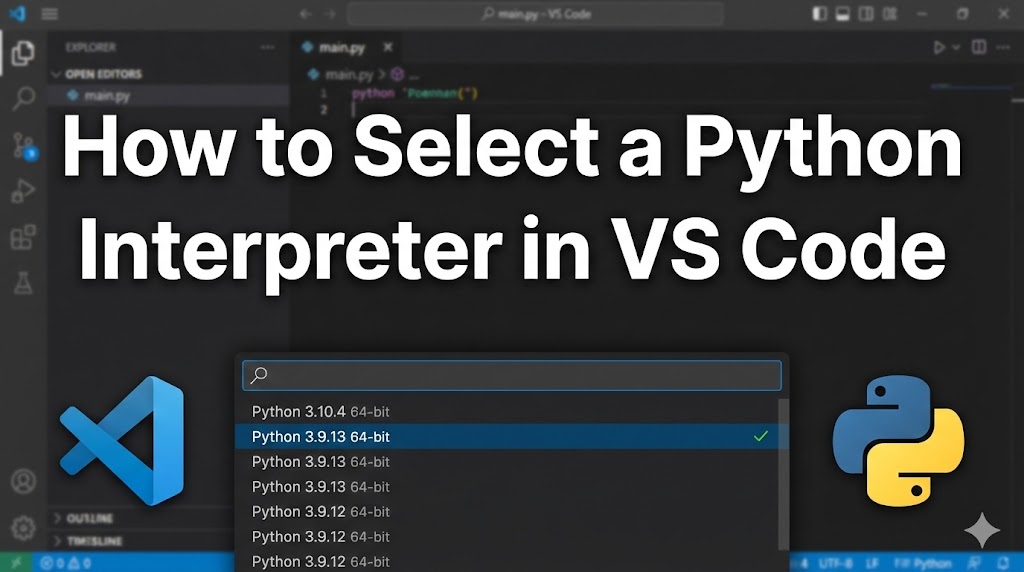
You’ve installed Python, opened VS Code (Visual Studio Code, a popular code editor), but your code won’t run — or it’s using the wrong version of Python. This usually means VS Code hasn’t picked the right Python interpreter (the program that actually runs your Python code).
Don’t worry — selecting the correct interpreter takes just a few clicks. Let’s walk through it.
目次
Why the Python Interpreter Matters in VS Code
- Wrong interpreter = missing packages — If VS Code is using your system Python instead of your virtual environment, it won’t find the packages you installed.
- Multiple Python versions — You might have Python 3.9, 3.10, and 3.12 installed. VS Code needs to know which one to use.
- Virtual environments need manual selection — VS Code doesn’t always automatically detect your project’s virtual environment.
Method 1: Use the Command Palette (Recommended)
This is the quickest and most reliable way to select your Python interpreter in VS Code.
Step 1: Open the Command Palette.
# Keyboard shortcut
Windows/Linux: Ctrl + Shift + P
Mac: Cmd + Shift + P
Step 2: Type “Python: Select Interpreter” and click on it when it appears in the dropdown list.
Step 3: You’ll see a list of all detected Python interpreters. Choose the one you want:
- If you’re using a virtual environment, look for the path that includes
venvor.venvin it. - If you just want the latest Python, pick the one with the highest version number.
If the bottom-left corner of VS Code now shows your chosen Python version, you’ve done it correctly.
Method 2: Click the Status Bar
If you see a Python version displayed in the bottom-left status bar of VS Code, you can click on it directly.
Step 1: Look at the bottom-left corner of VS Code. You should see something like Python 3.x.x or a warning icon.
Step 2: Click on it. The same interpreter selection list will appear.
Step 3: Select the interpreter you want to use.
If the status bar updates to show your selected version, it’s working.
Method 3: Set the Interpreter Path Manually
If VS Code can’t find your Python installation automatically, you can tell it exactly where to look.
Step 1: Find where Python is installed on your system.
On Windows:
# Run this in Command Prompt
where python
On Mac/Linux:
# Run this in Terminal
which python3
Step 2: Copy the path that the command returns.
Step 3: Open VS Code Settings.
# Keyboard shortcut
Windows/Linux: Ctrl + ,
Mac: Cmd + ,
Step 4: Search for “Python: Default Interpreter Path” and paste the path you copied.
Step 5: Reload VS Code by closing and reopening it, or press Ctrl+Shift+P and type “Reload Window”.
If VS Code now recognizes your Python installation, the setup is complete.
How to Select a Virtual Environment Interpreter
If you created a virtual environment for your project but VS Code isn’t using it:
Step 1: Make sure your project folder is open in VS Code (File → Open Folder).
Step 2: Open the Command Palette (Ctrl+Shift+P / Cmd+Shift+P) and type “Python: Select Interpreter”.
Step 3: Look for the interpreter with venv in the path. It will look something like:
# Windows
.\venv\Scripts\python.exe

# Mac/Linux
./venv/bin/python
Step 4: If it’s not in the list, click “Enter interpreter path” and browse to the Python executable inside your virtual environment folder.
If the status bar shows the interpreter from your virtual environment, you’re all set.
What to Do If It Still Doesn’t Work
- Install the Python extension — Make sure the official Python extension by Microsoft is installed in VS Code. Without it, interpreter selection won’t work.
- Reload VS Code — Sometimes VS Code needs a restart to detect new Python installations.
- Check that Python is actually installed — Run
python --versionorpython3 --versionin your terminal to confirm. - Recreate your virtual environment — If the virtual environment is broken, delete the
venvfolder and create a new one.
Summary
- Use
Ctrl+Shift+P→ “Python: Select Interpreter” to choose your Python version in VS Code. - Always select the interpreter from your virtual environment when working on a project.
- If VS Code can’t find Python, set the path manually in settings or check that the Python extension is installed.
Related articles:
- vscode-extensions-python.html
- python-virtual-environment-setup.html
- vscode-terminal-python-not-running.html







Leave a Reply