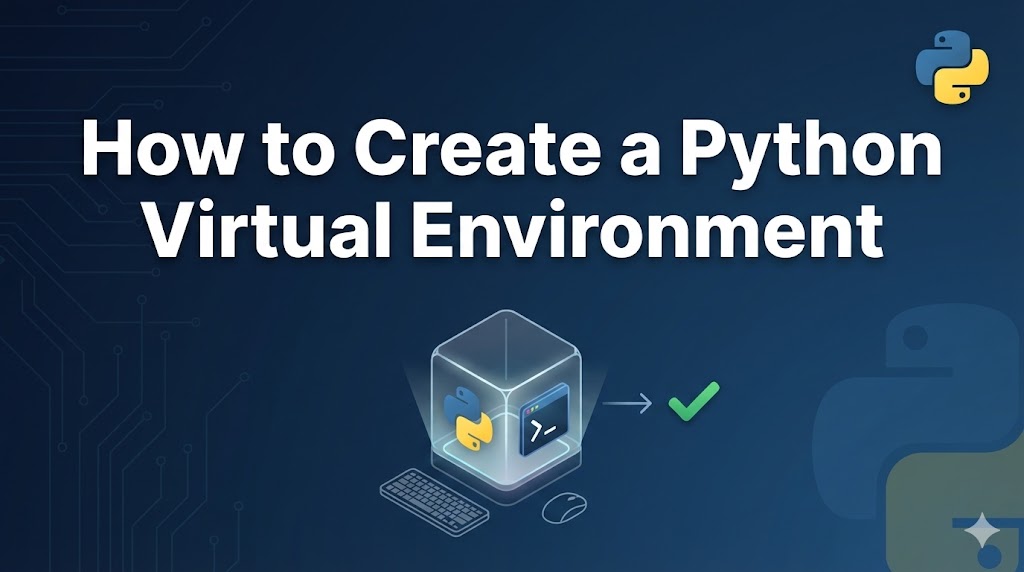
If you’ve been told to “create a virtual environment” and have no idea what that means, you’re in the right place. It sounds complicated, but it’s actually just a few commands.
A virtual environment is like a separate box for each of your Python projects. It keeps the packages (extra tools/libraries) for one project from interfering with another. Think of it as giving each project its own clean workspace.
This guide will walk you through creating one on both Windows and Mac.
目次
Why You Need a Python Virtual Environment
- Avoid package conflicts — Different projects might need different versions of the same package. Without a virtual environment, they’d fight over which version to use.
- Keep your system Python clean — Installing everything globally (system-wide) can eventually cause problems and is hard to undo.
- It’s a professional best practice — Almost every Python tutorial and job will expect you to use virtual environments.
Step-by-Step: Create a Virtual Environment
Step 1: Open your terminal (Command Prompt on Windows, Terminal on Mac).
Step 2: Navigate to your project folder.
# Replace "my-project" with your actual folder name
cd my-project
Step 3: Create the virtual environment using Python’s built-in venv module.
On Windows:
# Creates a virtual environment in a folder called "venv"
python -m venv venv
On Mac/Linux:
# Creates a virtual environment in a folder called "venv"
python3 -m venv venv
If no error appears and you see a new venv folder inside your project directory, you’re good to go.
Step 4: Activate the virtual environment.
On Windows (Command Prompt):
venv\Scripts\activate
On Windows (PowerShell):
venv\Scripts\Activate.ps1
On Mac/Linux:
source venv/bin/activate
If you see (venv) at the beginning of your terminal line, the virtual environment is active. That’s how you know it’s working.
Step 5: Now install packages inside the virtual environment.
# This installs the package only in your virtual environment, not globally
pip install requests
How to Deactivate the Virtual Environment
When you’re done working on your project and want to go back to your normal system Python, just type:
deactivate
The (venv) prefix should disappear from your terminal. You can reactivate it anytime by running the activate command again.
Troubleshooting Common Issues
Problem: “python: command not found” or “‘python’ is not recognized”
# Try using python3 instead
python3 -m venv venv

# If that doesn't work either, Python might not be installed or not in your PATH
# Check our related article: python-install-windows.html
Problem: PowerShell says “running scripts is disabled”
# Run this command in PowerShell as Administrator
Set-ExecutionPolicy -ExecutionPolicy RemoteSigned -Scope CurrentUser

# Then try activating again
venv\Scripts\Activate.ps1
If PowerShell now shows (venv), the issue is resolved.
Problem: “No module named venv”
# On Ubuntu/Debian Linux, install the venv module
sudo apt install python3-venv

# Then create the virtual environment again
python3 -m venv venv
What to Do If It Still Doesn’t Work
- Delete and recreate — Remove the
venvfolder entirely and run the creation command again. - Check your Python version — Run
python --version. You need Python 3.3 or later forvenv. - Try a different name — Instead of
venv, trypython -m venv myenvin case something is conflicting. - Make sure Python is in your PATH — See our guide on setting up Python on your system.
Summary
- A Python virtual environment gives each project its own separate set of packages.
- Create one with
python -m venv venvand activate it before installing packages. - Always look for
(venv)in your terminal to confirm it’s active.
Related articles:
- python-install-windows.html
- pip-install-error.html
- python-path-windows.html








Leave a Reply