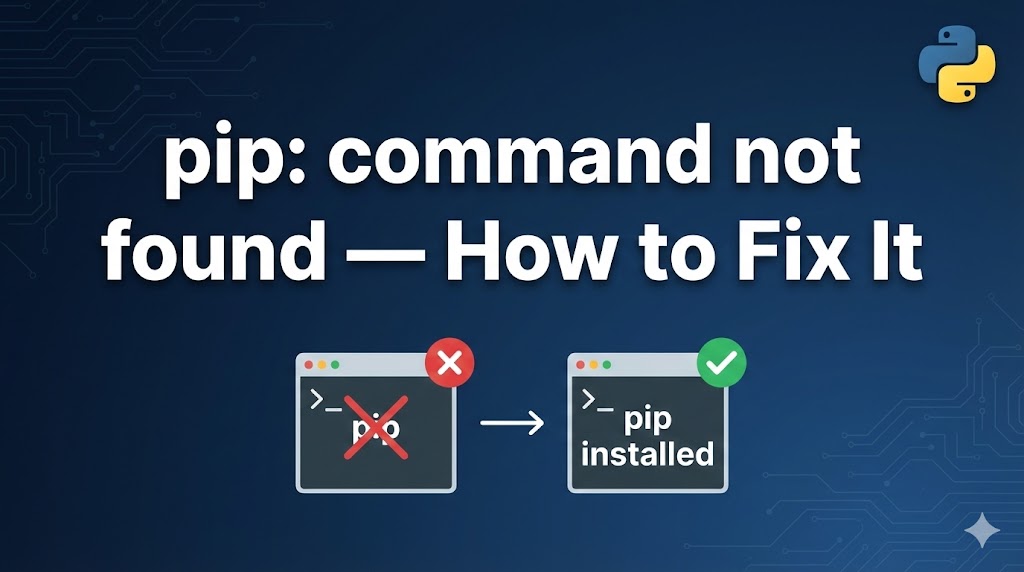
You typed pip install in your terminal and got “‘pip’ is not recognized” or “pip: command not found”?
This means your system can’t locate the pip command. pip is Python’s package manager (the tool used to install libraries), and it should come bundled with Python — but sometimes the setup doesn’t quite work.
Don’t worry, this is one of the most common setup issues. This guide will get pip working for you in just a few minutes.
目次
Why “pip command not found” happens
This error occurs when your system doesn’t know where pip is located. The main causes are:
- Python wasn’t added to PATH during installation: This is the most common cause on Windows — the “Add Python to PATH” checkbox was missed
- pip is installed but not in the system PATH: pip exists on your machine but the terminal can’t find it
- Python was installed without pip: Some minimal installations skip pip
Solution 1: Use “python -m pip” instead (most common fix)
The quickest workaround is to run pip through Python directly.
1. Try the python -m pip format
On Windows:
# Instead of "pip install", use this:
python -m pip install requests
On Mac:
# Use python3 on Mac
python3 -m pip install requests
If the installation starts and you see “Successfully installed”, this workaround solves your problem. You can use python -m pip in place of pip for all commands.
2. Make it permanent by upgrading pip
# This often fixes the PATH issue for future "pip" commands too
python -m pip install --upgrade pip
After upgrading, try running pip --version directly. If it works, the pip command is now available without the python -m prefix.
Solution 2: Reinstall Python with PATH enabled (Windows)
If python -m pip also doesn’t work, Python itself may not be on your PATH.
1. Download the Python installer from python.org
# Visit in your browser:
https://www.python.org/downloads/
2. Run the installer and check “Add Python to PATH”
# On the FIRST screen of the installer:
# ☑ "Add Python 3.xx to PATH" ← CHECK THIS BOX
# Click "Install Now"
This is the most important step. If you already have Python installed, you can run the installer again and choose “Modify” to add the PATH setting.
3. Open a NEW terminal and verify
# Close ALL terminal/command prompt windows
# Open a fresh one
pip --version
If you see something like “pip 24.x from …” then pip is working. Old terminal windows won’t pick up the change, so always open a new one.
Solution 3: Install pip manually
In rare cases, pip might not be included in your Python installation. You can install it manually.
1. Download the pip installer script
# Download get-pip.py using curl (works on both Windows and Mac)
curl https://bootstrap.pypa.io/get-pip.py -o get-pip.py
Or open the URL in your browser and save the file.
2. Run the installer script
On Windows:
python get-pip.pyOn Mac:
python3 get-pip.pyIf you see “Successfully installed pip”, the installation worked.
3. Verify pip is working
pip --versionIf the version shows up, you’re done. You can delete the get-pip.py file now.
If nothing works
If pip still can’t be found after trying the above:
- Check if Python itself is accessible:
# Try these commands to see if Python works
python --version
python3 --version
py --version- On Windows, try the “py” launcher: Windows sometimes installs a
pycommand instead ofpython
# Use the py launcher with pip
py -m pip install requests- On Mac, use Homebrew: If the standard install doesn’t work, Homebrew provides a clean setup
# Install Homebrew (if not installed)
/bin/bash -c "$(curl -fsSL https://raw.githubusercontent.com/Homebrew/install/HEAD/install.sh)"

# Install Python via Homebrew
brew install python

# pip3 will now be available
pip3 --version- Tip for asking for help: Include the output of
python --version,where python(Windows) orwhich python3(Mac), and the exact error message you see when runningpip
Summary
- The fastest fix is using
python -m pipinstead of justpip— this works in most situations - On Windows, reinstalling Python with “Add Python to PATH” checked permanently fixes the issue
- If pip is completely missing, download and run
get-pip.pyto install it manually
Related articles:
- pip-install-error.html (How to fix pip install errors)
- python-path-windows.html (How to fix Python PATH on Windows)
- python-install-windows.html (Can’t install Python on Windows)
- module-not-found-error.html (How to fix ModuleNotFoundError)
















Leave a Reply