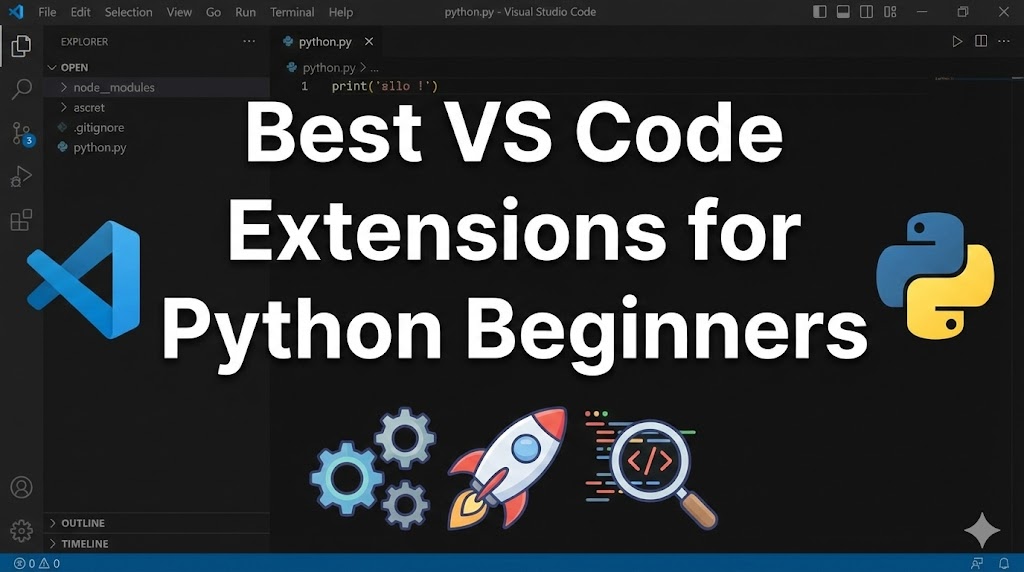
You’ve installed VS Code and Python — but VS Code feels a bit bare? That’s because VS Code is a lightweight editor that relies on extensions (add-on features) to become a powerful development tool.
With the right extensions, VS Code can catch errors before you run your code, auto-format your files, and make debugging much easier.
This guide covers the must-have VS Code extensions for Python beginners. Install these and your coding experience will improve immediately.
目次
Why you need Python extensions for VS Code
Without extensions, VS Code doesn’t know much about Python. Extensions add features like:
- Syntax highlighting and error detection: Your code gets colored and errors are underlined before you run it
- Auto-completion: VS Code suggests code as you type, saving time and reducing typos
- Code formatting and debugging: Automatically fix indentation and step through your code line by line
Extension 1: Python (by Microsoft) — the essential one
This is the single most important extension. Almost everything else builds on it.
1. Install the Python extension
# In VS Code:
# 1. Press Ctrl + Shift + X (Windows) or Cmd + Shift + X (Mac)
# 2. Search for "Python"
# 3. Find "Python" by Microsoft (it has millions of downloads)
# 4. Click "Install"
2. What it gives you
- IntelliSense (smart auto-completion that suggests functions and variables)
- Error detection (red underlines on mistakes before you run the code)
- Python interpreter selection (choose which Python version to use)
- Run and debug Python files with one click
After installing, open any .py file and you should see the Python version in the bottom-left status bar. If it shows up, the extension is working.
Extension 2: Pylance — smarter code intelligence
Pylance supercharges the auto-completion and error checking provided by the base Python extension.
1. Install Pylance
# In the Extensions panel (Ctrl + Shift + X):
# Search for "Pylance"
# Find "Pylance" by Microsoft
# Click "Install"
2. What it gives you
- Faster and more accurate auto-completion
- Type checking (warns you about type mismatches before runtime)
- Better “Go to Definition” — click on a function to jump to where it’s defined
- Detailed hover information showing function signatures and documentation
Pylance often installs automatically with the Python extension. If you already see rich auto-completion, you may already have it.
Extension 3: Code Runner — run code instantly
Code Runner lets you execute Python code with a single keyboard shortcut.
1. Install Code Runner
# In the Extensions panel:
# Search for "Code Runner"
# Find "Code Runner" by Jun Han
# Click "Install"
2. How to use it
# After installing:
# Open any Python file
# Press Ctrl + Alt + N (Windows) or Ctrl + Option + N (Mac)
# Your code runs and output appears in the terminal
3. Recommended setting: run in terminal
// Open settings.json and add this line:
// This makes Code Runner use the integrated terminal (supports user input)
"code-runner.runInTerminal": true
Without this setting, input() won’t work because Code Runner uses a read-only output panel by default.
Extension 4: More helpful extensions to consider
These are not essential but make everyday coding smoother.
autopep8 or Black Formatter — auto-format your code
# Search for "autopep8" or "Black Formatter" in Extensions
# Install one of them
# Your code will be auto-formatted to follow Python style standards when you save
To enable format on save:
// Add to settings.json:
"editor.formatOnSave": true
indent-rainbow — visualize indentation
# Search for "indent-rainbow" in Extensions
# Install it
# Each indentation level gets a different color
# Makes it easy to spot IndentationError before running your code
Error Lens — show errors inline
# Search for "Error Lens" in Extensions
# Install it
# Errors and warnings appear right next to the problem line
# No need to hover over red underlines to see the message
If extensions aren’t working
If you installed extensions but they don’t seem to do anything:
- Reload VS Code: Press Ctrl + Shift + P, type “Reload Window”, and select it. Some extensions need a reload to activate
- Check the Python interpreter: Press Ctrl + Shift + P, type “Python: Select Interpreter”, and make sure a valid Python version is selected
- Check for conflicts: If you have multiple Python-related extensions, they might conflict. Disable any extensions you don’t recognize and see if things improve
- Tip for asking for help: Include which extensions you have installed (visible in the Extensions panel) and your VS Code version (Help → About)
Summary
- The “Python” extension by Microsoft is the must-have — install it first, and Pylance will likely come with it
- Code Runner lets you run scripts with a single shortcut — add
"code-runner.runInTerminal": truefor full functionality - Formatting extensions (autopep8 or Black) and visual aids (indent-rainbow, Error Lens) make daily coding much smoother
Related articles:
- vscode-terminal-python-not-running.html (Can’t run Python in VS Code terminal)
- vscode-japanese-encoding.html (How to fix character encoding in VS Code)
- indentation-error-unexpected-indent.html (IndentationError: unexpected indent — how to fix)








Leave a Reply