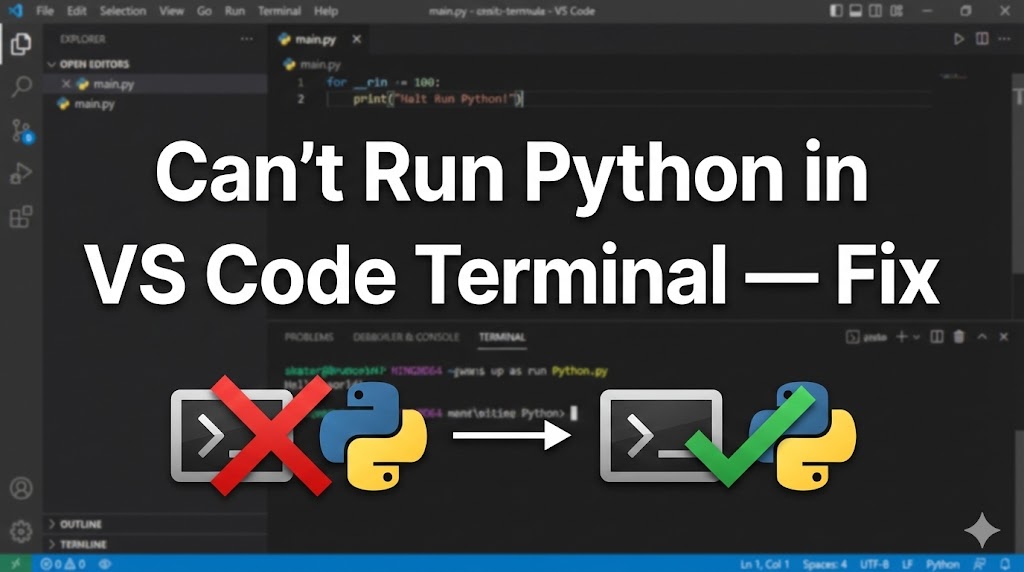
You opened the terminal in VS Code, typed python, and got an error — or nothing happened at all?
Running Python inside VS Code’s built-in terminal should be straightforward, but there are a few common reasons it might not work right away.
Don’t worry, this is a setup issue that’s easy to resolve. Follow the steps below and you’ll have Python running in VS Code in no time.
目次
Why Python won’t run in the VS Code terminal
There are three common causes for this problem:
- Python is not installed or not on your PATH: VS Code’s terminal is just a regular terminal — if Python isn’t set up on your system, it won’t work here either
- The wrong Python interpreter is selected in VS Code: VS Code might be pointing to a Python version that doesn’t exist
- The Python extension is not installed: Without the official Python extension, VS Code can’t properly detect and run Python
Solution 1: Install Python and set up PATH (most common fix)
First, make sure Python is actually installed and accessible from the command line.
1. Check if Python is installed
# In the VS Code terminal, type:
python --version

# On Mac, try:
python3 --version
If you see a version number like “Python 3.XX.X”, Python is installed. Skip to Solution 2.
If you see “‘python’ is not recognized” or “command not found”, Python needs to be installed or added to your PATH.
2. Install Python (or reinstall with PATH enabled)
# Download from the official site:
# https://www.python.org/downloads/

# Windows: CHECK "Add Python 3.xx to PATH" during installation
# Mac: Python 3 should be available after installing from python.org
3. Restart VS Code completely
# Close VS Code entirely (not just the terminal)
# Reopen VS Code
# Open a new terminal (Ctrl + ` or View → Terminal)
python --version
VS Code needs to be restarted to pick up PATH changes. If the version shows up, you’re good.
Solution 2: Select the correct Python interpreter in VS Code
VS Code needs to know which Python installation to use. If it’s pointing to the wrong one, things won’t work.
1. Open the Command Palette
# Windows: Ctrl + Shift + P
# Mac: Cmd + Shift + P
2. Search for “Python: Select Interpreter”
# Type "Python: Select Interpreter" and click on it
# You'll see a list of available Python installations
3. Choose the correct Python version
# Pick the Python version you installed
# It usually looks like:
# Python 3.xx.x ('base')
# Python 3.xx.x (path: C:\Users\...\python.exe)
If you don’t see any options, go back to Solution 1 — Python may not be installed properly.
4. Try running your script again
# Right-click in your Python file and select "Run Python File in Terminal"
# Or press the play button (▶) in the top right corner
If the script runs and you see output, you’re all set.
Solution 3: Install the Python extension for VS Code
The official Python extension provides features like the interpreter selector, code running, and debugging.
1. Open the Extensions panel
# Windows: Ctrl + Shift + X
# Mac: Cmd + Shift + X
2. Search for “Python” and install the official extension
# Look for "Python" by Microsoft
# It should be the first result with millions of downloads
# Click "Install"
3. Reload VS Code and try again
# After installing, VS Code may ask you to reload
# Click "Reload" or restart VS Code manually
# Open your Python file and click the ▶ play button to run it
With the extension installed, you should see the Python version in the bottom-left status bar. If your code runs, you’re done.
If nothing works
If Python still won’t run in the VS Code terminal:
- Check which shell VS Code is using: VS Code might be using PowerShell, Command Prompt, or Git Bash. Python might work in one but not the other
# Click the dropdown arrow next to "+" in the terminal panel
# Try switching to a different shell (e.g., Command Prompt instead of PowerShell)
# Then try "python --version" again- On Windows, check the PowerShell execution policy: PowerShell sometimes blocks scripts from running
# In the VS Code terminal (PowerShell), run:
Set-ExecutionPolicy -Scope CurrentUser -ExecutionPolicy RemoteSigned- Tip for asking for help: Share the exact error message you see in the terminal, the output of
python --version, and which shell VS Code is using (shown in the terminal dropdown)
Summary
- Make sure Python is installed and on your PATH — reinstall with “Add Python to PATH” checked if needed
- Use “Python: Select Interpreter” in the Command Palette to point VS Code to the right Python
- Install the official Python extension by Microsoft for the best experience
Related articles:
- python-install-windows.html (Can’t install Python on Windows)
- python-path-windows.html (How to fix Python PATH on Windows)
- vscode-japanese-encoding.html (How to fix character encoding in VS Code)










Leave a Reply