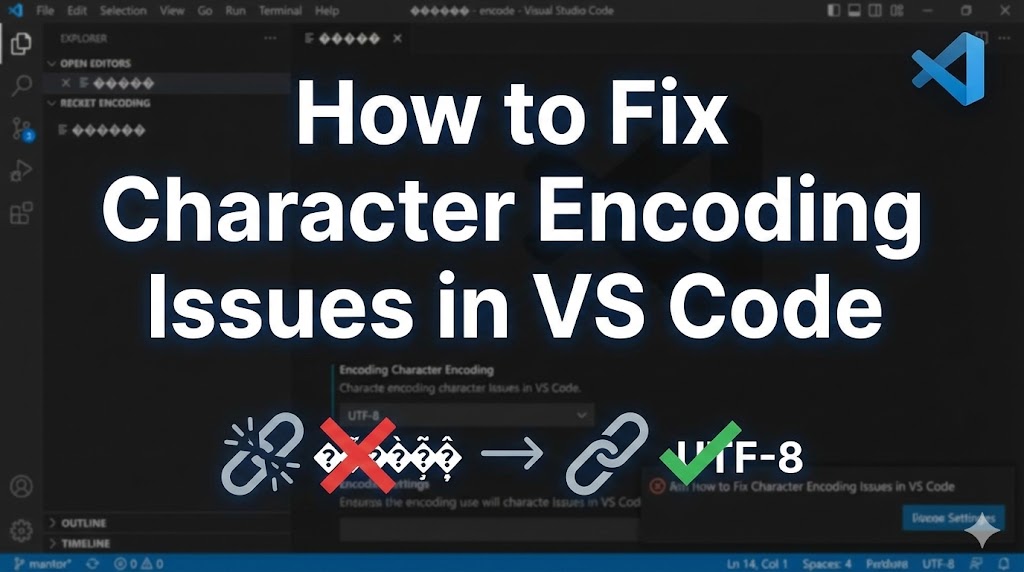
You opened a file in VS Code and the text looks like a jumbled mess of random symbols?
This is called “mojibake” (garbled text), and it happens when the character encoding — the system that converts characters into data — doesn’t match between the file and your editor.
Don’t worry, this is easy to fix with a quick settings change in VS Code. Follow the steps below and your text will be readable again.
目次
Why character encoding issues happen in VS Code
Garbled text occurs for two main reasons:
- The file’s encoding doesn’t match VS Code’s encoding: For example, a file saved in Shift_JIS (a legacy encoding common in older Windows software) is being opened as UTF-8 (the modern universal standard)
- VS Code’s auto-detection failed: VS Code sometimes guesses the wrong encoding for a file
Solution 1: Reopen the file with the correct encoding (most common fix)
The quickest fix is to reopen the garbled file with the right encoding.
1. Look at the encoding indicator in the bottom-right corner of VS Code
You’ll see something like “UTF-8” or “Shift_JIS” in the status bar at the bottom right. This shows the encoding VS Code is currently using for the file.
2. Click the encoding indicator
A dropdown will appear at the top of the screen. Select “Reopen with Encoding.”
3. Choose the correct encoding
# Try these in order when text is garbled:
# 1. Japanese (Shift JIS) ← Most likely if the file was created on Windows
# 2. UTF-8
# 3. EUC-JP ← For files from older Linux systems
# 4. Windows 1252 ← For Western European text
# 5. ISO 8859-1 ← Another common Western encoding
If the text displays correctly, you’ve found the right encoding. The most common scenario is a Shift_JIS file being opened as UTF-8, so try that first.
4. Save the file as UTF-8 for future compatibility
# Click the encoding indicator in the bottom right again
# Select "Save with Encoding"
# Choose "UTF-8"
UTF-8 is the universal standard and works across all platforms. Re-saving in UTF-8 prevents future encoding issues.
Solution 2: Enable automatic encoding detection
To avoid manually fixing encoding every time, enable VS Code’s auto-detection feature.
1. Open VS Code settings
# Use the keyboard shortcut
# Windows: Ctrl + , (comma)
# Mac: Cmd + , (comma)
2. Search for “encoding”
Type “encoding” in the search bar at the top of the settings page.
3. Check “Auto Guess Encoding”
# Find the setting called "Files: Auto Guess Encoding"
# Check the box (✓)
With this enabled, VS Code will automatically try to detect the correct encoding when opening files. Once checked, the setting is saved immediately.
4. Close and reopen the file
After enabling auto-detection, close the garbled file and open it again. It should now display correctly.
Solution 3: Edit settings.json directly
You can also configure encoding settings by editing the settings file directly.
1. Open settings.json
# Open the Command Palette
# Windows: Ctrl + Shift + P
# Mac: Cmd + Shift + P

# Type "Preferences: Open User Settings (JSON)" and select it
2. Add the following settings
{
    // Enable automatic encoding detection
    "files.autoGuessEncoding": true,

    // Set the default encoding to UTF-8
    "files.encoding": "utf8"
}
If there are already other settings in the file, add a comma after the last existing setting before adding these lines. The changes take effect as soon as you save.
If nothing works
If the above methods don’t solve the problem, check these additional areas:
- Terminal text is garbled: If text in VS Code’s integrated terminal is garbled, you may need to change the terminal font
// Add this to settings.json
{
    // Use a font that supports your language in the terminal
    "terminal.integrated.fontFamily": "Consolas"
}- Python output is garbled: Add an encoding declaration at the top of your Python file
# Add this as the first line of your Python file
# -*- coding: utf-8 -*-- Try a VS Code extension: Extensions like “Code Spell Checker” or language-specific extensions can help with encoding issues
- Tip for asking for help: Take a screenshot of the garbled text along with the encoding shown in the bottom-right corner. This makes it much easier for others to diagnose the issue
Summary
- The fastest fix is clicking the encoding in the bottom-right corner and selecting “Reopen with Encoding”
- Enable “Auto Guess Encoding” in settings to prevent future encoding issues
- Re-save files as UTF-8 for maximum compatibility across platforms
Related articles:
- syntax-error-invalid-syntax.html (SyntaxError: invalid syntax — causes and fixes)
- pip-install-error.html (How to fix pip install errors)











Leave a Reply